ASIO Drivers
Note: this driver type is available for Windows only.
ASIO drivers allow for low latencies. In addition they allow for multichannel recording (Pro edition only). If a sound device comes with an ASIO driver it's usually best to use it.
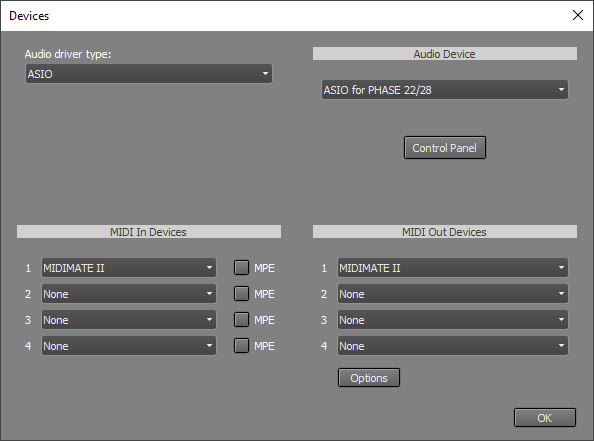 |
In the Audio Device section you can select the audio device that will be used.
On clicking the Control Panel button the driver's control panel will appear. This panel usually lets you set the buffer size. Buffers can be up to 4096 samples (this corresponds to 93 ms at 44.1/88.2 kHz and 85 ms at 48/96 kHz). A buffer size of 256 (at 44.1 kHz) can be considered a good compromise between reliability and low latency.
If the buffers are too small glitches will occur. This may not be a problem when playing back audio or recording MIDI, as the driver will usually stay in sync so any glitches will not appear in the final master. It's strongly recommended to use large enough buffers when recording audio, as glitches in the recorded track do appear in the master.
In the MIDI In Devices section you can select the device that is used for MIDI recording.
In the MIDI Out Devices section you can select the device that is used for MIDI playback. The 'Default' option uses the default Windows MIDI output device.
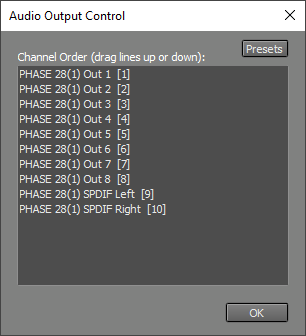
Audio Output Control
 |