Remote Control Settings
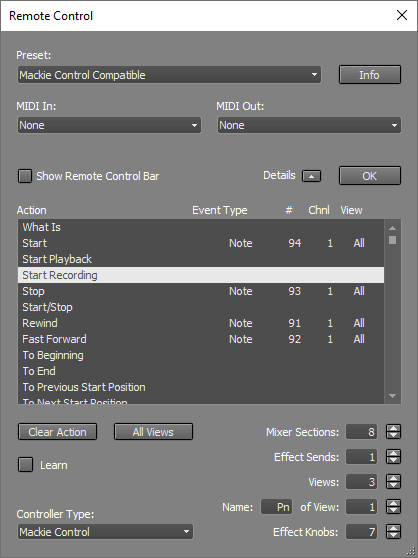 |
Note: the MIDI Out box value is ignored if the selected MIDI In device is a bidirectional MIDI 2.0 endpoint.
The Clear Action button clears the highlighted action. The None preset can be used to clear all actions. If the Learn button is engaged, any incoming MIDI messages will be mapped to the highlighted action. Custom mappings can be created easily this way.
Conversions are applied to remote controls that use SysEx messages, for example. Several Controller Types can be selected:
- MIDI Controller: plain MIDI messages
- HUI
- Mackie Control
- FaderPort
- Keystage
- TranzPort
- AlphaTrack
Controlling Mixer Sections
The Mixer Sections setting will typically match the number of channel strips the remote provides. The highest possible value is 64.
The Effect Sends setting determines how many Effect Send knobs can be controlled using the remote.
There can be multiple Modes. This is typically used to control multiple actions with a single rotary knob (Mode 1 = Pan, Mode 2 = Effect Send 1, etc.). The All Modes button makes the highlighted action appear in all modes. You'll probably want volume faders, transport buttons, etc. to be in all modes.
Controlling Effects/Instruments
The Effect Knobs setting determines the number of physical knobs available for controlling effects.
An effect can only be controlled while its user interface is visible on screen. The knobs used to control effects will often also be used to control mixer sections (e.g., pan knobs). MultitrackStudio handles this automatically (there's no need to use modes for this).
Effect parameter counts may exceed the number of available physical knobs. In this case, there will be multiple pages of parameters. You can assign the Effect Page Up and Effect Page Down actions to buttons, allowing you to step through the pages. Alternatively, you can assign the Effect Page Up/Down action to a rotary knob, so turning the knob steps through the pages.
Tip: You can right-click a rotary knob in an effect/instrument window and choose Find on Remote Control. This will:
CLAP/VST3 plugins have right click menus too, if the plugin supports this.For other plugins, you can click (or even move) a control, then right click the right hand area and choose "Find last clicked on Remote Control".
Actions
The following actions can be controlled by the remote. Actions marked (cc) should be controlled by a continuous controller (rotary knob or fader), all other actions are meant to be controlled by a button.The following actions control the Transport:
- Start
- Start Playback: start transport only if no track Rec buttons are engaged (ie. the Play button has a green triangle)
- Start Recording: start transport only if any track Rec buttons are engaged (ie. the Play button has a red triangle)
- Stop
- Start/Stop: equivalent to hitting the space bar.
- Rewind
- Fast Forward
- To Beginning
- To End
- To Previous Start Position
- To Next Start Position
- To Nearest Bar
- Transport Wheel (cc)
- Transport Shuttle (cc)
- To Previous Marker
- To Next Marker
- To Marker (cc)
- Add Marker
- Delete Marker
- VariSpeed (cc) (Pro edition only)
- VariSpeed Mode (cc) (Pro edition only)
- Loop: toggle Loop on/off.
- Set Loop Start: set start of looping region (uses the current transport position).
- Set Loop End: set end of looping region (uses the current transport position).
- Counter: turn on/off remote's counter display.
- Counter Format: toggle bars/seconds.
- Zoom In
- Zoom Out
- Zoom In/Out (cc)
- Automation Recording (Pro edition only)
- Automation Touch Mode (Pro edition only)
These actions allow for opening songs:
- To Next Song: to next song of songlist.
- To Song (cc): to song of songlist (zero = first song).
If there's no songlist it looks for a file named "setlist.txt" located in the "root folder for new songs" as defined in the Preferences window. This file should map controller values to songs like this:0=C:\My Songs\Yellow Sun\Yellow Sun.hdr
1=C:\My Songs\Blue Sky\Blue Sky.hdr - To Song High (cc): adds another 7 bits to the "To Song" action, so more than 128 songs can be used. "To Song High" must be sent before "To Song". The song number is calculated like this: song = 128 x "To Song High" + "To Song".
Note: MultitrackStudio takes care that things work smoothly if "Save 'everything' in song" (see Preferences) is enabled. It won't show "save?" prompts for unimportant changes like transport position. After loading a song, transport will go to zero and looping will be turned off automatically.
These actions control a couple of recording related things:
- New Audio Track: select a template from list of audio track templates
- New MIDI Track: select a template from list of MIDI track templates
- New Group
- New Effect Return
- Alternate Take: click the Recording option's Alternate Take item.
- Re-Arm: engage the Rec buttons of the last recorded tracks.
- Soft Monitoring: click the Soft Monitoring button.
- Punch: click the Punch button.
These actions control mixer sections:
- Section Play: toggle a track's Play button.
- Section Rec: toggle a track's Rec button.
- Section PlayRec: toggle between playback and record mode.
- Section Practice Mode: switch track to practice mode.
- Section Fader (cc)
- Section Mute
- Section Solo
- Section Half Solo: toggle between half solo and no solo.
- Section Pan (cc)
- Section Effect Send (cc)
- Section Slot: open an Effect Slot (show the effect's user interface).
- Section Select Slot (cc): pop up effect selector window
- Section First Used Slot
- Section Last Used Slot
- Section Output Selector (cc)
- Section Editor: open/close a track's editor.
- Section Set Punch In: make start of the editor's selected part equal to the Transport position.
- Section Set Punch Out: make end of the editor's selected part equal to the Transport position.
- Section Set Punch In/Out: select the editor's selected part while the Transport is running. This should be done before recording.
- Section Goto Punch In: make Transport position equal to the start of the editor's selected part.
- Section Goto Punch Out: make Transport position equal to the end of the editor's selected part.
- Section Undo Punch: click track editor's Undo button
- Section Redo Punch: click track editor's Redo button
- Section Clone: add track with new file and similar settings.
- Section Remove
- Section Map: pop up selector to map a mixer section to remote control strip.
- Master Fader: controls the Master section's volume fader.
- Clear Solo: turn off any active Solo buttons.
- Level Meters: turn on/off the remote's level meters
- Faders Silent: suspend/resume motor fader control. Can be used to keep the (automated) faders from making noise while recording in the same room.
- Slot Select Button: press this button before pressing the Section Slot button. Now a Section Select Slot action will be sent instead of a Section Slot action.
- Mouse Control (cc): controls the knob the mouse points to.
- Send Snapshot: send all values to the remote (probably never needed).
These actions control modes and banks:
- Mode Button
- Mode Down
- Mode Up
- Mode Up/Down (cc)
- Bank Down: move (typically) 8 sections down
- Bank Up: move (typically) 8 sections up
- Bank Up/Down (cc)
- To First Bank
- To Last Bank
- Section Down
- Section Up
- Section Up/Down (cc)
- To Section (cc)
The following actions are used to control Effects and Instruments. These actions can share knobs with non-effect actions (eg. Effect Knob and Section Pan can be on the same knob, Effect Page Up and Mode Up can be on the same button etc.).
- Effect Knob (cc): control an effect's knob.
- Effect Control Map: pop up selector to map an effect control to a remote control knob.
- Effect Mouse Control (cc): controls the effect knob the mouse points to. Both this one and "Mouse Control" can work with 3rd party plugins after you've clicked a knob or moved it a bit.
- Effect Page Down
- Effect Page Up
- Effect Page Up/Down (cc)
- Effect To First Page
- Effect To Last Page
- Effect To Left Slot: close this effect/instrument and open the previous one
- Effect To Right Slot: close this effect/instrument and open the next one
- Effect Close: close the effect window.
- Effect Bypass. Also used for instrument channel, it can be (cc) in this case. An Effect Knob will be used for the Bypass action automatically if this action isn't assigned.
The following actions are used to select effects, sampler patches etc. These actions can share knobs with actions which are not in this group (eg. Selector Accept can be on the same button as Effect Close).
- Selector Down
- Selector Up
- Selector Up/Down (cc)
- Selector Category Down
- Selector Category Up
- Selector Category Up/Down (cc)
- Selector Accept: also used to invoke message dialog "OK" or "Yes" buttons.
- Selector Cancel: also used to invoke message dialog "Cancel" or "No" buttons.
Other actions:
- What Is: Keep this button down while using another button or knob. A description of the associated action will be shown in the bottom left corner of the screen.