Mac audio/MIDI devices
Note: this feature is available for Mac only.
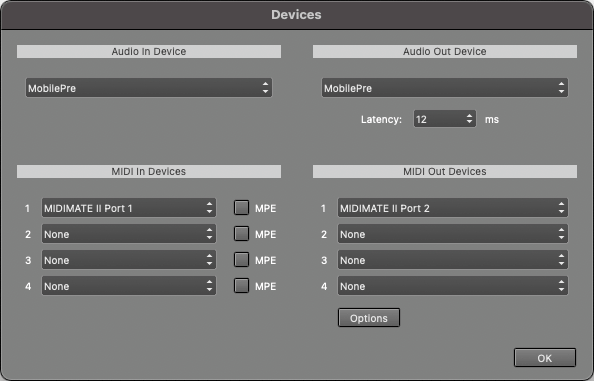 |
In the Audio In Device section you can select the audio device that will be used for recording.
In the Audio Out Device section you can select the audio device that will be used for playback.
It's recommended to use Audio In and Out devices which are part of the same sound device. If they're not their sample rates probably aren't equal. This can be quite a problem, as recorded tracks will slowly go out-of-sync during playback. To solve this problem you can create an 'aggregate device' using the Audio MIDI Setup application, and use this device in MultitrackStudio. macOS will then take care of syncing the two devices.
The Latency box determines the time it takes before you hear the sound when playing MIDI software instruments live or when using Soft Monitoring ('live effects'). You'll hear glitches if this setting is too low.
Your sound device may not support latencies as low as the one you've selected. The actual latency appears if you hover the mouse over the Studio menu's Devices option.
In the MIDI In Devices section you can select the device that is used for MIDI recording.
In the MIDI Out Devices section you can select the device that is used for MIDI playback.
macOS 11 supports MIDI 2.0. MIDI In/Out Devices use the MIDI 2.0 protocol if the connected device uses this protocol.
Audio Output Control
 |
The Level fader, which is only available if the sound device supports this, controls the playback level.
The Control Panel button pops up the Sound page of the System Preferences, where you can adjust detailed playback levels etc. if the sound device supports this.