Audio Effects
MultitrackStudio features a large number of built-in high-quality audio effects. In addition AU / CLAP / VST plugins can be used.
The following audio effects are available:
 |
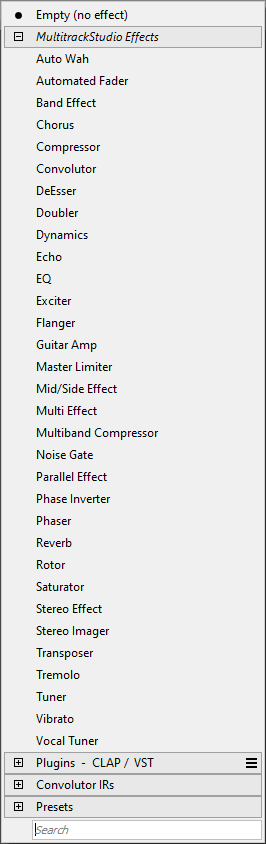 |
While an effect's user interface is visible you can press the F3 key (Windows) / Option-Command-F (Mac) to pop up the selector list. It remembers the search text, so you can try the next effect which matches the search text easily.
Clicking the slot's button will show the effect's user interface. All effects have a Bypass button. If the effect is not actually active (it's either bypassed or its controls are in neutral position) the text in the effect slot's display appears dimmed. Inactive effects do not use any processing power.
Tip: you can click the bottom left corner of an effect slot to toggle the effect's Bypass button. A 'B' appears if you hover the mouse over this area.
Effects can be moved using drag-and-drop, keeping the Ctrl key (Windows) / Option key (Mac) down while doing this will copy the effect instead of move it. Adding or removing effects can be done while the transport is running.
Presets
Presets can be loaded or created using the Presets button which appears on the effect's user interface. Most effects come with built-in presets.
Controlling the Transport
You can use still the keyboard or the mouse to control the transport while an effect's user interface is visible.
Third party plugins may steal keyboard focus, so the MultitrackStudio keyboard shorts no longer work. You can click the righthand part of the plugin window (the "MultitrackStudio part") to restore keyboard focus.
MultitrackStudio tries to let Space, Left Arrow, Right Arrow, Home, End, Page Up and Page Down keys control the transport even if the plugin steals keyboard focus. You can add the Ctrl key to force sending a key to the plugin only, so it doesn't affect transport. If this feature causes problems with a plugin you can go to the Plugin Manager and check the Keybrd box.