Editing MIDI Tracks
The track editor is displayed by clicking on the Editor Preview pane (depending on your preferences, there may also be an Edit button here). The editor can display MIDI notes in three different ways: Pianoroll, Score, and Drum. The tabs on the right (PIANO/SCORE/DRUM) can be used to switch between these editors. The default editor is Pianoroll, this can be changed in the Preferences window.
All three editors allow you to edit MIDI as if it were audio, as well as to edit the MIDI notes themselves. This section covers editing MIDI as if it were audio, the next sections cover editing notes and controllers.

At the bottom of the editor, the common track editor buttons appear (see Common track editor buttons). Editing actions like paste, delete, or undo affect both notes and controllers.
MIDI Edit Control
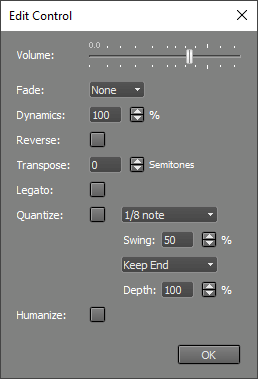 |
MIDI Edit Controls have the following features:
- Volume fader: Changes the volume of the selected part.
- Fade: Performs a fade-in or fade-out on the selected part.
- Dynamics: Compress (0..100%) or expand (100..400%) the dynamic range of the notes.
- Reverse: Reverses the selected part.
- Transpose: Transposes all notes in the selected part by a number of semitones.
- Legato: Adjusts note durations to make note-to-note transitions smoother. Can be used to make "smooth" instruments like violins sound more natural.
- Quantize: Notes that are not exactly on grid positions are moved closer to them. You can use this feature to improve the timing of a poorly timed performance.
Note: a good musical performance becomes worse if you quantize it.
The upper box sets the resolution. Various options are available:- Normal note: 1/1, 1/2, 1/4, 1/8, 1/16, or 1/32 note. A Swing option is available for normal notes.
- Triplets of 1/2, 1/4, 1/8, or 1/16 notes.
- You can type a custom value like "5 in 1/4". This example would be a quintuplet of 16th notes.
Four types of quantization are available:- Start and End: Quantizes both note-on and note-off.
- Keep End: Quantizes note-on, does not adjust note-off. This is the default type.
- Keep Duration: Quantizes note-on, moves note-off to preserve the original duration.
- Duration only: Quantizes the duration only, the note may not start on a grid position.
- Humanize: Shifts notes by a (small) random amount of time and slightly alters the note velocities.