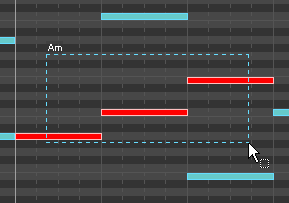
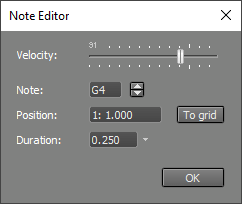
MIDI Event EditingThe Pianoroll, Notation and Drum editors are capable of editing individual notes. The Controller Editor can be used to edit controller events. Pianoroll, Notation and Drum editor: common propertiesAll editors are capable of selecting either a part of the track (or stream in the case of multiple stream files) or individual notes.Notes can be dragged using the mouse. The editor will scroll automatically if the mouse approaches any of the four sides of the editors.You can select a note by clicking it. Selected notes appear in red, only one note can be selected at a time. If a note is selected clicking the Edit button will pop up the Note Editor. Alternatively you can double-click a note to open the Note Editor.
Right clicking a note pops up a menu offering Edit and Delete functionality. Right clicking in 'empty space' pops up a menu to add notes. Mouse ModifiersMany operations on single notes can be performed quickly by keeping a key pressed while clicking the note (for example: the note's volume can be edited using the V key):
Pianoroll Editor
You can draw notes by moving the mouse horizontally while keeping the left mouse button down. Notes can be dragged or resized using the mouse as well. Clicking the mouse without dragging it will add a note having the same length as the last one. Step RecordingThe Pianoroll editor can be used for step recording. If the vertically oriented piano on the left is clicked while the Ctrl key is held down, the corresponding note will be recorded at the current transport position. Also, the transport position will move to the end of the new note. The length of the new note equals one step of the current grid. The right mouse key can be used to add a rest instead of a note. Ctrl-Shift-Rightclick steps one step to the left, Ctrl-Shift-Leftclick steps one step to the left and then adds the note. Notation Editor
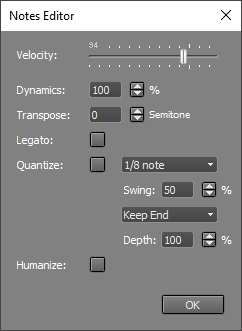
The section on the left shows the clef being used. It can be changed by clicking it, possible values are Bass, Treble, both Bass and Treble, Tenor and Alto. Next to the clef section the Key Signature is shown. This value can be changed to a value ranging from 6 flats up to 6 sharps by clicking it. The Key Signature is stored in the MIDI file. Notes can be added by leftclicking the mouse. Keeping the S or F key down while clicking the mouse adds or subtracts a semitone ('Sharp' or 'Flat') , so you can add notes that are not in the current scale directly. The Notation editor has a resolution of 1/32th note. It's recommended to turn on Gridsnap when using the Notation editor. Although it is possible to use the Notation editor when the time scale is set to seconds, this obviously doesn't make sense. Triplets are recognized automatically. Triplets can be added easily by dragging them from the Shelf's Midi Notes section. Alternatively the EDIT button can be used to modify a note's position and length. The Settings button pops up the notation editor's Settings window:
Display Resolution, Reduce Rests and Ties and Hide All Rests can be used to reduce the number of small notes and/or rests. Drum Editor
The Drum Editor features a separate Drum Instrument Editor for each instrument used. New instruments can be added using the New Inst button. The Instrument's name is shown on the left hand side of the Drum Instrument Editor. A different instrument can be selected upon doubleclicking it. Every instrument corresponds to a MIDI note (eg. C3 is a bass drum, E3 is a snare and B4 is a hihat in General MIDI). The note corresponding to the instrument will be shown in case no name is available. Drum Instrument Editors work like any other MultitrackStudio editor. In addition you can leftclick the mouse (without dragging it) to add a note. The note's volume is indicated by a small black dot (the higher the dot the higher the volume). Mouse ModifiersThe Drum Editor doesn't support mouse modifiers which don't make sense for percussion instruments (like Duration, Sharpen, Expand to chord etc.). Some modifiers, however, can operate on similar notes in similar bars as well using the F3 key:
Controller EditorMIDI Synths can use controller events to alter the sound they generate. The Controller Editor can be used to edit these events. This editor can be shown by clicking the Track editor's CONTR button.
All controllers are supported except the data entry and RPN controllers (#5, #38 and #96...101). Using the Controllers button a particular controller's editor can be made visible or invisible. By default only controllers that are actually being used are shown. Switching Controller EditorsControllers #64..#69 are 'switching" controllers: they are either 'on' or 'off'. The Sustain and Soft controllers are of the switching type. A switching controller's editor is a horizontal line that can be up or down. Up means off, down means on (just like a piano sustain or soft pedal). After selecting a part the On or Off button can be used. Alternatively the Alt key can be held down while selecting a part. If the mouse is over the upper half of the editor the selected part will be turned off, if the mouse is over the lower half the selected part will be turned on. Continuous Controller EditorsAll other editors use dots to represent the controller value. Dots can be added by left clicking the mouse. One or more Dots can be selected or dragged using the mouse. Selected dots appear red, and they can be deleted using the Delete button. Freehand drawing is possible by keeping the Alt key down while moving the mouse (keep the left mouse button down). | |||||||