Sampler
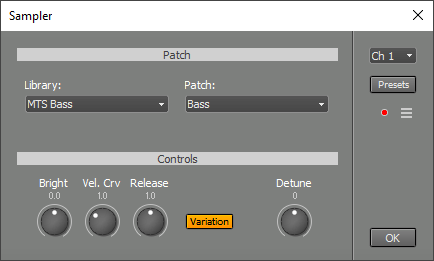 |
You can load a sample library using the Library box.
The Import... option allows for importing .sf2, .sfz, .gig or .exs files, as well as MultitrackStudio's .zptc and .ptc files.
The Export... option exports the library to .zptc format. You can use this to move a library to a different computer for example.
Tip: On Windows you can import the system MIDI bank to get started. It's usually at C:\Windows\system32\drivers\gm.dls
The Patch box can be used to pick one of the patches the library provides.
Edit patch... invokes the Patch Editor.
The controls in the Controls section override the values stored in the patch (as set by the Patch Editor).
Tip: simple patches, containing just one sample, can be created easily by dragging an audio file from File Explorer (Windows) / Finder (Mac) to a MIDI track's Instrument Slot. You can also drag the selected part of a track editor or clips from the Clip Shelf to an Instrument Slot. A Sampler will be loaded in the Instrument Slot and a patch will be created for it. To use the patch in other songs you need to export the library and import it again.
The Sampler supports the following MIDI messages:
- Note On/Off
- Modulation (cont. 1)
- Volume (cont. 7)
- Pan (cont. 10)
- Expression (cont. 11)
- Sustain (cont. 64)
- Legato (cont. 68)
- Brightness (cont. 74)
- Pitch Bend
- Poly Aftertouch
- MIDI 2.0 per-note pitch bend
- MIDI 2.0 per-note modulation
- MIDI 2.0 per-note volume
- MIDI 2.0 per-note pan
- MIDI 2.0 per-note expression
Tip: to use per-note modulation with an MPE keyboard you can use the Keyboard Mapper. Set it up to map per-note aftertouch or per-note brightness to per-note modulation.
If the track has multiple MIDI streams the Sampler uses only the first stream.
The Sampler responds to messages on all MIDI channels, so the Channel value typically doesn't matter. It does matter if you're recording using the Keyboard Mapper's split option or multiple keyboards: in these situations you want only messages received on this channel to be recognized.
The Output button, available if the patch uses multiple outputs, pops up an 8 channel output mixer. This is typically used for drums. In the Pro edition these output channels are available as sidechain sources in other tracks.
The Options menu offers some settings:
- Polyphony: The number of samples a Sampler is allowed to play simultaneously. You can lower this setting to reduce CPU or disk usage.
- Memory Limit: The amount of memory all Samplers combined are allowed to use. The operating system will be forced to use the hard disk if too much memory is being used. This 'disk swapping' will decrease performance significantly, and should therefore be avoided. This setting is intended for lowering the Sampler's memory usage to make room for other audio programs (eg. sampler type instrument plugins). If memory available for Samplers is limited dropouts may occur if a Sampler is used in record mode. You don't need to worry about this: the sound will be OK during playback.
Note: the Sampler does not support all the features an .sf2, .sfz, .gig or .exs file can use. Differences include:
- The Sampler can't play multiple samples for a single key press. A 'piano + strings' soundfont that wants to play back piano and string samples simultaneously won't sound as intended, for example. Worst case you'll hear piano for some keys and strings for others, in this case you could delete some samples using the patch editor.
- There's no filter, modulation or effects. You could try using some MultitrackStudio effects make a patch sound more exciting.
Under the hood
Imported sample libraries are converted to MultitrackStudio .ptc format patches. Each library gets its own folder which has the same name as the library ("MyPiano.sf2" ) for example. You can change the location of these folders in the Studio-->Preferences window. The audio samples themselves are stored as losslessly compressed .gjm/.gjs files. so the converted libraries typically use significantly less disk space than the originals. Libraries can be exported to .zptc format, this is a .zip file containing the .ptc file(s) and the samples used.