External Sidechain Routing
Note: this feature is available in the Pro edition only.All versions of MultitrackStudio feature "internal sidechaining". In this scenario, an effect (typically an EQ) can be inserted in the sidechain, while the sidechain input is always connected to the effect input. The Pro edition also features "external sidechaining", where the sidechain input can be connected to sources outside the effect.
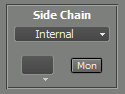 |
- Internal: the effect's input.
- Track: the output of an audio or software-instrument track.
- Group Bus: the sum of the tracks that are routed to a specific Group. Available if the effect is in a Group, Effect Return, or Master section.
- Effect Send: the mix of the Effect Sends of Tracks and Groups. Available if the effect is in a Group, Effect Return, or Master section. Effect Send signals from Groups will not be sent to effects in a Group section, but they will be sent to Effect Return and Master sections.
- Band Effect In: the Band Effect's input. Available if the effect is in a Band Effect.
Track sidechaining
Track sidechaining can be used to perform "ducking" (i.e., mute the bass guitar every time the kick drum hits, or mute the background music whenever the announcer speaks). Example: load a Compressor in the bass guitar track, switch it to the Clean program (which supports sidechaining), and select the kick drum track as sidechain source.
The only limitation that applies to track sidechaining is that sidechains can't "feed" themselves, e.g., Track 1 can't use Track 2 as sidechain source if Track 2 already uses Track 1. This typically isn't a problem in practice.
Group Bus sidechaining
Group Bus sidechaining can be used instead of track sidechaining if you want to control multiple tracks with another track as the sidechain source, or if you want to control an effect with the sum of several other tracks.
Effect Send sidechaining
This was the only way to do "ducking" before track sidechaining was introduced. It is rather complicated to set up, but it can still be useful.
Effect Send bus sidechaining is best explained using an example:
 |
In this example, the level of the lower track will be muted when the upper track is loud. The upper track's Effect Send (the rotary knob with the white dot) sends the track's signal to the Effect Send bus. The lower track's output is sent to Group 1. One of this Group's Effect Slots contains a Compressor effect using Effect Send 1 as the sidechain source.
Effect Return 1's fader is all the way down to prevent the signal from being sent to the Master section.
In this example, the upper track will be audible (the Effect Send is post-fader, so the fader can't be all the way down). If you don't want this, you can send its output to an additional Group and mute that Group.
Note: the Group's Effect Send does not affect the signal sent to the Compressor's sidechain input. However, the signal is sent to the Effect Return section as expected.
Band Effect sidechaining
The Band Effect In source can be used to build your own dynamic noise filters (using a Noise Gate or Dynamics effect's expander in the treble band), etc.
Plugin sidechaining
AU, CLAP, and VST audio effect plugins that have more than 2 input channels will get a Sidechain box just like the ones in the Dynamics/Compressor/Noise Gate effects. Input channels 3 and 4 will receive the sidechain source signal.
Instrument plugins that have audio inputs get a Sidechain box as well. You can, for example, load vocal pitch correction plugins in an instrument slot and route the vocal track to it using the Sidechain box. Then you can use the track's MIDI editor to enter notes that the plugin can use to determine the correct pitch.
Some (older) plugins use the right channel of a stereo pair as the sidechain input. To take advantage of this, you can use a Stereo Effect before the plugin, with a Dynamics effect in the right-channel effect section. Click the Dynamics effect's Mon button and select the sidechain input, which will now be routed to the plugin. You might want to use another Stereo Effect after the plugin to mute the right channel and pan the left channel to center.
Some (older) VST2 plugins use proprietary sidechain input plugins. This is a secondary plugin that picks up the sidechain source and routes it to the primary plugin. This setup will not work reliably on multi-CPU machines in MultitrackStudio unless you tell the program these plugins belong together. You can enable the SC Plug option in the Plugin Manager. New instances of the plugin will now get a Sidechain Plugin box. This box is identical to a Sidechain box, except its output is ignored. You can load the secondary plugin in the effect slot in the Sidechain box, and choose the sidechain source. MultitrackStudio's sidechaining mechanism will then ensure everything works correctly under any conditions.
Multi-output Instrument sidechaining
Some AU / CLAP / VST instrument plugins have multiple outputs. The Sampler can have multiple outputs too. The outputs of these instruments are available as sidechain sources. Up to 30 outputs per instrument can be used as sidechain sources. This feature is especially useful with drum instruments. For example:
- Use the kick drum output as the sidechain source for a Compressor or Dynamics effect in the bass track.
- Route the instrument outputs to tracks, so you can mix the drum instruments in the main window instead of the instrument's Output Mixer.
An instrument output can be routed to a track by adding an audio track and loading a Dynamics effect in its first effect slot. In this Dynamics effect, you can select the sidechain source and click the Mon button. If you route all the drum instrument outputs to tracks this way, you can mute the instrument track using its Mute button. Note that you'll have to unmute this track if you want to play the instrument live or hear notes when clicked in the track's editor. This is because the sidechains only work while the track is playing back.