New in MultitrackStudio 6
- Touchscreen Support
- Onscreen MIDI Keyboard
- Manual audio input channel assignment
- Automation / MIDI Controller editor improvements
- Half-speed recording
- Other
Note: pictures may be from a later version
1. Touchscreen Support
MultitrackStudio 6 features a touchscreen mode which makes the program easy to use with touchscreens. Touchscreen support has been designed to turn the computer in a recording and mixing device, while allowing some editing as well. You can interact with the knobs you see on the screen directly without having to find your mouse and move it to the right location first. In fact you're not even supposed to have a mouse or keyboard within reach!
The best touch experience is provided by Windows 7 combined with a multi-touch screen. Multi-touch means you can use multiple fingers simultaneously. The new onscreen MIDI keyboard benefits from this. It also allows for two-finger zooming.
MultitrackStudio does a great job at making the most out of single-touch touchscreens and older Windows versions as well.
As far as the touchscreen itself is concerned: a convertible notebook (a notebook which lets you flip the lid, so the screen is outside when the lid is closed) or a touchscreen mounted on a stand would be great.
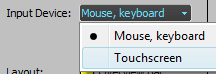 | 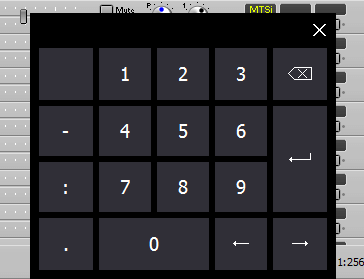 | |
 it's being touched, so you can see it even if your hand covers it. |
For more detailed information please see the manual.
2. Onscreen MIDI Keyboard
The onscreen keyboard can be used to play MIDI instruments, it works just like a MIDI In Device. Not only does it offer a keyboard layout, but a drum layout and various string layouts as well.
 |  |  |
The onscreen keyboard can be used with a touchscreen. A multi-touch screen lets you play multiple notes simultaneously, and also makes monophonic parts easier to play. The number of fingers which can be used simultaneously solely depends on the touchscreen and its driver. Multi-touch support requires Windows 7.
Using the computer keyboard is possible as well. The onscreen keyboard provides suitable shortcut keys for various international keyboard layouts automatically. The number of keys which can be played simultaneously solely depends on the keyboard hardware, three keys typically isn't a problem.
The fader on the left controls volume (MIDI controller 7). It can be moved while playing the keyboard if you're using a multi-touch screen.
The keyboard and string layout support finger vibrato when using a touchscreen. The string instruments support string bends, this requires a multi-touch screen. Only monophonic parts can be played while finger vibrato or string bends are enabled.
3. Manual audio input channel assignment
Until now, audio input channels were assigned to recording tracks automatically. While this is very convenient for home recording, it may be a bit of a challenge for live multitrack recording.
The AsioSnd and VistaSound driversets now optionally let you assign inputs to tracks manually. Both input control windows now have an "Automatically assign inputs to tracks" button, which is on by default. If you turn it off all audio tracks will show a down arrow on the right hand side of the Rec button. Clicking this down arrow pops up the input channel selector. The input channel is displayed on the Rec button itself.
 "Automatically assign inputs to tracks" button |  channel numbers on Rec buttons |
4. Automation / MIDI Controller editor improvements
Automation, MIDI Controller and the Automated Fader effect editors feature several improvements:
- Automation editors can now add 4 dots in one go, to quickly attenuate or amplify a part. Similarly, MIDI controller editors can add 2 dots.
- The editors show the value of the dot under the mouse pointer.
- Automation editors now show the actual parameter values rather than 0..100. Most VST plugins still show 0..100. (Pro Plus edition only)
- If a single dot is selected the Edit button lets you type a new value.
- If multiple dots are selected the Edit button lets you 'amplify' them, changing the vertical distance between the dots. This can be useful for automated Pan knobs, or MIDI pitch controllers.
5. Half-speed recording
VariSpeed (Pro Plus edition only) now not only can be set to -200..+200 cents, but to -1400..-1000 cents as well. At -1200 cents the transport runs at half speed. Audio tracks and software instruments sound one octave lower at half speed, External MIDI Instruments don't.
6. Other
- VistaSound driverset can optionally work in "pull mode". This works better when CPU usage is high. Not all drivers will support this correctly.
- Guitar Amp effect is more CPU efficient when used "live", to make it more usable on slower machines. Less oversampling is used. (Pro Plus edition only)
- Notation Settings window has 8va/Normal/8va bassa switch.
- All text fields support Unicode, so all international characters can be used in track names etc. Song files are still compatible with older versions.
- Track faders and controller/automation editors are larger at high DPI settings (these were the only things not scaling yet).
- Editors support Ctrl key + mouse wheel to zoom in/out. The left hand part of pianoroll and audio editors zooms vertically.
- Tooltips appear while dragging mixer sections to make it more clear where the section will go.
- Resizing track editors: screen is updated on-the-fly now
- Other improvements and somes fixes.