Noise Gate
The Noise Gate attenuates signals below a certain level. It can be used to remove noise, or headphone bleed recorded by a vocal mic, from a track.
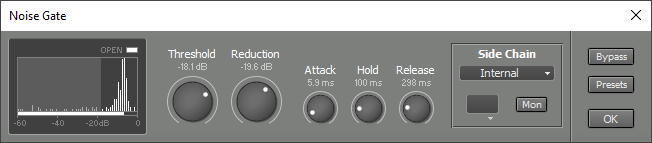 |
Threshold determines the level below which the signal is attenuated. Reduction controls the amount of attenuation applied to signals below the threshold. Applying heavy attenuation can cause the Noise Gate to respond more slowly.
Attack controls the time it takes for the Noise Gate to open (i.e., let the signal through). Release controls the time it takes for the Noise Gate to close (i.e., attenuate the signal). The values represent the time needed for a 60 dB change. Hold sets a fixed amount of time to wait after the signal drops below the threshold. The release phase begins after the Hold time has elapsed.
The Open indicator lights up when the gate is open. This is also shown in the effect slot itself.
The Trigger Signal History on the left shows the relative amount of time the sidechain signal (after effects processing) stays at a certain level (the taller the bar, the more time spent at that level). The current input level is shown horizontally at the bottom. This Trigger Signal History makes it very easy to set the threshold. There is a colored "curtain" on the left side of the display that can be adjusted using the mouse or the Threshold knob. The signal bars that fall under the curtain are muted (i.e., the gate is closed). The Trigger Signal History resets automatically when the transport starts or when the Noise Gate window opens. You can reset it manually by pressing the F5 key (Windows) / Command-R (Mac).
In short, setting up the Noise Gate goes like this:
- Make sure the Noise Gate window is on screen.
- Press the Space bar to start the Transport, play the whole song, then press the Space bar again to stop.
- If there are two distinct groups of vertical bars, adjust the Threshold knob so that the "curtain" covers the left group. If there's just one group, or if the two groups are not clearly separated, try using an EQ effect in the Side Chain section.